Sandbox BCI-SE WS 2022/23
Formatting examples
Here are a few examples of special formatting in Wiki.js. The standard Markdown syntax can be found on the following pages, for example:
Notes
- Please select the markdown editor to edit. Insbesondere bei der Verwendung unterschiedlicher Editoren für dieselben Seiten könnte es sonst zu Konflikten kommen.
- Do not forget to click Save. Even though the preview shows changes immediately, they are not automatically saved and are lost, for example, when the browser tab is closed without saving first.
Wiki.jsis still relatively new in development and accordingly there are still some bugs. For example, the preview does not match the actual display in all details. Text that is framed by underscores appears underlined in the preview, but is displayed in italics on the real page.
References
A reference list and references to entries in this list can best be realized with footnotes. These can be provided with self-selected labels and listed in any order. During rendering, the references / footnotes are automatically numbered according to the order in which they appear in the text. References that are not referenced in the text do not appear in the list at the end.
Example: Demaine and colleagues have shown that the game Phutball is NP-complete. [1]
Here the reference is generated by [^Demaine2002]. At the end of the file is the corresponding entry, introduced by the chosen label followed by :.
[^Demaine2002]: Demaine ED, Demaine ML, Eppstein D. **Phutball endgames are hard.* *More Games of No Chance.* 2002 Nov 25;42:351. [arXiv](https://arxiv.org/pdf/cs/0008025)
This entry can be anywhere in the document, e.g. right here or at the very end. All references / footnotes are always displayed at the end of the document, no matter where they are in the Markdown file.
More information on footnotes can be found here.
Images
Images can be added via
{<ALIGNMENT>}
The arguments <SIZE>, "<TOOLTIP>" and {<ALIGNMENT>} are optional. A specific example:


Here, a URL from the Internet was used. Alternatively, images can also be uploaded to the wiki. To do this, click on Insert Assets in the left column. There you navigate to /teaching/2022-bci-se and create (if not already done) a subfolder with your name. Then you can upload files on the right side. You can include these image files as follows:

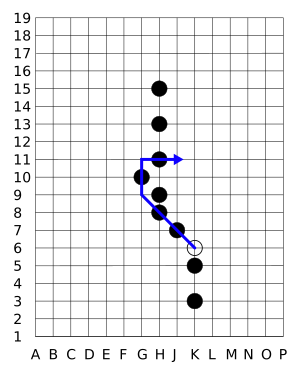
Here is an example with size selection and alignment (note: there must not be a space after the equal sign before the size specification):
{.align-center}
Note, that in the previous example, the image is equipped with a tooltip, which is shown, when you hover with the pointer over the image. This tooltip can, e.g., be used to provide a reference to the source of the image, see the example below.
You can also add a link to the image, for example, such that clicking on the image leads to the image in full size:
[{.align-center}](https://upload.wikimedia.org/wikipedia/commons/6/6e/Phutball_jump.svg)
Images in right column next to text

For this you have to use HTML formatting as far as I know. However, in the default layout of Wiki.js, there can be a conflict if the image extends into the next section.
In this case, the horizontal line under the heading goes through the image. There are two ways to avoid this.
- You click on Page at the top right, switch to the Styles tab there and redefine the headings there without underlining using the following code:
.v-main .contents h1:after,
.v-main .contents h2:after,
.v-main .contents h3:after,
.v-main .contents h4:after {
  background: rgba(255,255,255,0)!important
}
This allows the image to continue into the next section, but it will not be crossed by the horizontal strokes.
- The other method is to make the following sections start below the image. To do this, insert the following HTML code before the heading of the next section:
<figure style="clear:both”></figure>
Extended Markdown
Emojis
 Emojis can be entered using emoji shortcuts like
:bulb:. A list of emoji shortcuts is here, but there is no standard for them, so it is unclear which ones are supported by Wiki.js.
Info boxes / blockquotes
To display info boxes, write
{.is-info}in the line after the blockquote. Other colors and symbols can be obtained by{.is-warning},{.is-success}and{.is-danger}.
Otherwise, normal blockquotes can be used in conjunction with emojis.
Super- and Subscript
H~2~O and e^10^, or using math formulas $e^{10}$.
H2O and e10, or using math formulas
Tables
I don't like the visual appearance of tables in the current Wiki.js style. Nevertheless here are some examples for more complex tables. If necessary you can improve the look with CSS (using Page and Style as explained above).
For formatting see markdown-it-multimd-table.
Abstract example:
| Grouping | ||
|---|---|---|
| First Header | Second Header | Third Header |
| Content | Long Cell | |
| Content | Cell | Cell |
| New section | More | Data |
| And more | With an escaped '|' | |
And a concret example:
| Stage | Direct Products | ATP Yields |
|---|---|---|
| Glycolysis | 2 ATP | |
| 2 NADH | 3-5 ATP | |
| Pyruvaye oxidation | 2 NADH | 5 ATP |
| Citric acid cycle | 2 ATP | |
| 6 NADH | 15 ATP | |
| 2 FADH2 | 3 ATP | |
| 30-32 ATP | ||